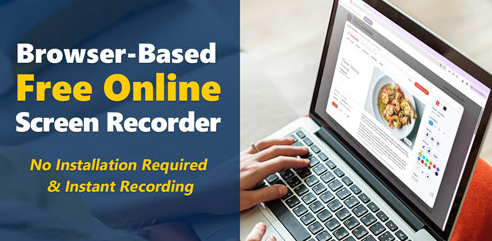
How to Record Your Screen Without Installing Anything — Bandicam’s Free Tool Explained
Most people do not realize this. You can record your screen without downloading any software at all. Bandicam — the company behind one of the most popular screen recorders in the world — has made a completely free browser-based version.
It lives at freescreenrecorder.com. It works. And it is free. Let us break down exactly how it works.
Step One — Open the Website
Go to freescreenrecorder.com on Chrome or Edge. That is all the setup required. No installation, no account creation, no trial period. The page loads and the recorder is right there.
Step Two — Choose Your Settings
Before you start recording, pick your audio source. You can use system audio to capture what is playing on your screen. You can use the microphone to capture your voice. Or you can use both at the same time — which is what most people need for a proper tutorial or walkthrough.
Then decide about the webcam. Turn it on if you want your face visible in the recording. Leave it off if you just need the screen.
Step Three — Hit Start and Choose Your Capture Area
When you click Start Screen Recorder, your browser asks what to share. You choose between your entire screen, a specific application window, or a single browser tab. Each option has different use cases.
Tab recording is great for capturing web content. Window recording works for recording a specific app. Full screen is best for demos where you move between applications.
Step Four — Annotate While You Record
Here is where it gets interesting. While your recording is running, you can draw on screen. Click and drag to draw lines. Hold E to use the eraser. Press C to clear everything. You can change the color and line width from the toolbar.
This is not an afterthought feature. It is built for people who teach or present. Being able to circle something, underline a point, or draw an arrow while talking — that changes how effective your video becomes.
Step Five — Save Your Video
When you stop recording, the video is ready. You save it as a WebM file directly to your device. No uploading. No waiting. The processing happens locally in your browser, which also means your footage never leaves your computer.
If you want to trim it, there is a direct link to open it in an online video trimmer tool. Quick and painless.
Quality and Resolution
The online recorder captures at up to 1080p Full HD. For a browser-based, no-install tool — that is impressive. The video quality is clean and usable for anything from internal training videos to YouTube content.
When You Need More — Desktop Options
The Bandicam desktop app is the right choice for more demanding needs. It is a proper screen recorder that supports 4K on Windows. It has hardware acceleration so recordings stay smooth even on long sessions. It handles game recording without lag too.
And for Mac users specifically, Bandicam offers a native mac screen recorder that goes all the way up to 5K resolution. Full hardware acceleration, multiple export formats, and all the advanced features you’d expect from a pro tool.
More than 10 million users are already on Bandicam. The free online version is the easiest way to see why.














Post Comment